

General settings
Almost everything general about your board lives on one page: Configuration, then Settings. The page is organized into tabs, and this guide walks through all of them in order, so you know what each switch does before you flip it.
yourboard.forumspark.net/admin/preferences
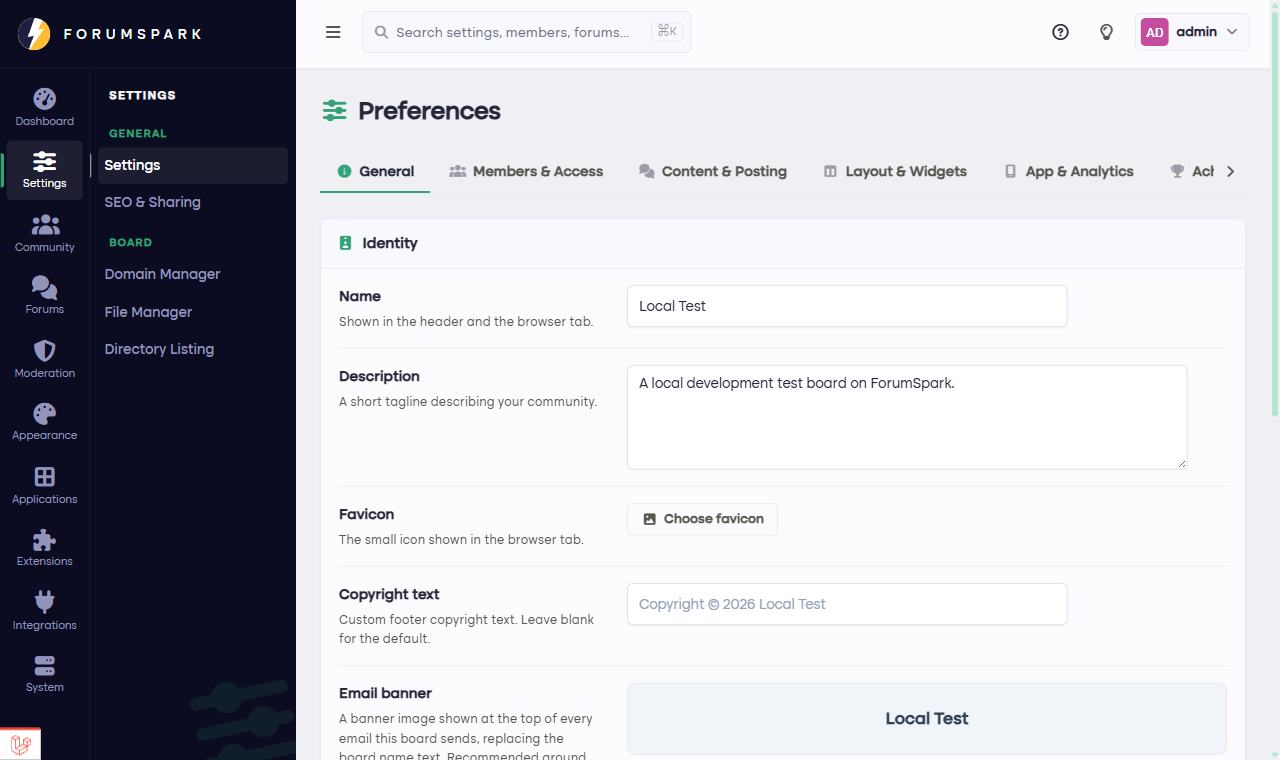
The Preferences page. Every tab saves with the same button, so change as much as you like in one visit.
General
Identity is your board's public face: the name shown in the header and browser tab, the description used as your tagline and in search results, and the favicon, the little icon browsers show on the tab. You can also override the footer copyright text and upload an email banner, an image that tops every email your board sends instead of the plain board name.
Forum list controls how dense the board index feels. The density toggle lets members choose between a roomy and a compact layout; the default density decides what everyone sees before they choose.
Board online is your maintenance switch. Turn the board offline and visitors see your offline message instead of the forum, while you and your staff keep full access. Handy for reorganizing sections without an audience.
Members & Access
Registration has the two switches from the Getting started guides: whether new people can register at all, and whether each registration waits for your approval first.
Aliases decides whether one person may run several accounts, and how many. Roleplay boards live on this; most other communities leave it off.
Groups & presence sets which group guests belong to, which group new members join automatically, and how recently someone must have been active to count as online. The groups themselves are managed under Community, then Groups; this is just about which ones are the defaults.
Avatars & covers sets the default avatar for members who never upload one, plus the size limits for avatars and profile cover images.
Status updates toggles the short profile-wall posts members can leave on their own and each other's profiles.
Welcome PM sends every new member a private message the moment they join. Pick which staff account it comes from and write the message once; it's the friendliest automation on the board.
ForumSpark SSO controls sign-in with a ForumSpark account. You can leave it as an option beside your own registration form, make it the only way in, auto-approve members who arrive through it, and sync their avatar from their ForumSpark identity.
Not sure about a switch in this tab? The safe defaults are the ones your board started with. Nothing here deletes anything; every toggle can be flipped back.
Content & Posting
Topics holds the hot topic threshold: how many replies a topic needs before it gets the flame marker on topic lists.
Post rate limiting is your flood protection: how many posts someone may make within a window of minutes. It quietly stops both spammers and over-enthusiastic double posters.
Attachments switches file uploads on posts on or off, caps the file size, and whitelists which file types are allowed. If you expect image-heavy topics, this is also where your storage quota gets spent; the Attachments and storage guide goes deeper.
Layout & Widgets
Board statistics toggles the birthday list and the users-online-today strip on your board index.
Widgets decides which side of the board the sidebar sits on, whether it sticks to the screen while scrolling, and whether members may dismiss individual widgets for themselves. What actually fills the sidebar is arranged under Appearance, then Widgets; the Arranging your sidebar guide covers that.
App & Analytics
PWA & Push Notifications makes your board feel like an app. Push notifications reach members even when the board is closed, and the install prompt invites phone visitors to add your board to their home screen.
Analytics takes a Google Analytics ID if you want your own traffic measurement on top of what the dashboard already shows.
Achievements
The switch for the whole achievements system, and the showcase limit: how many earned badges a member may pin to their profile. Designing the achievements themselves happens under Configuration, then Achievements.
One page, a lot of power. If you only remember one thing: the search box at the top of the admin panel finds any of these settings by name, so you never have to remember which tab something lives on.