
SEO and sharing
Two moments decide whether a stranger ever reaches your board: when it shows up in a search result, and when someone drops a link to it in a chat. The Configuration, then SEO & Sharing page controls exactly what both of those moments look like.
yourboard.forumspark.net/admin/seo
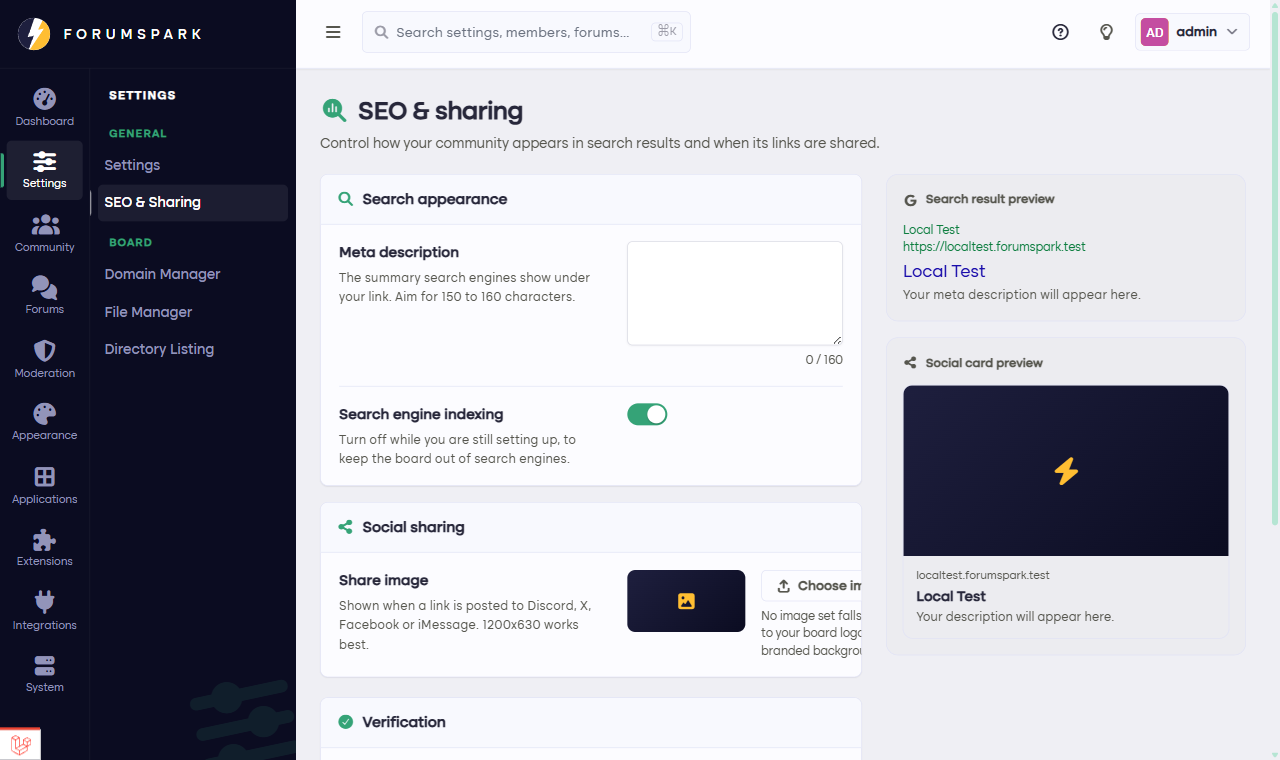
The page previews your search result and your share card live, as you type.
What's on the page
Meta description. The sentence search engines show under your board's name. Write it for a human deciding whether to click: what is this community, and who is it for?
Share image. The picture that appears when your board's link lands on social media or in a chat app. A wide image with your board's name on it makes links look intentional instead of accidental.
Allow indexing. The master switch for search engines. On for almost everyone; off if your community is meant to be found by invitation only.
Google verification. Paste the verification code from Google Search Console here if you want Google's own reports about how your board performs in search.
The live previews on the right show your search result and your share card exactly as they'll render, so you're never guessing.
The rest of the SEO story is handled for you: clean addresses, canonical links, and structured data are built into every board. Your job is just the two human sentences: the description and the image.