

Import your forum
If your community already lives somewhere else, you don't have to start over. ForumSpark imports forums from XenForo and Jcink, and it brings the lot: your members and groups, your forums, your topics and replies, even polls and private messages. Anything already on your new board stays where it is; imported items are added alongside it.
Create your ForumSpark board first, then import into it. The import adds your old content to the new board.
Running an import
Export from your old software. Each platform has its own export; the import screen explains exactly what file it expects for yours.
Open the import tool. In the admin panel, search for Import in the top search box, or find it in the sidebar. Pick your platform.
Upload your export. Big files are fine; the uploader handles them in pieces, so even a large community's history goes through.
Start the import and let it run. It works through your file in the background. Depending on the size of your forum this takes anywhere from a minute to a good while, and you can keep using the admin panel meanwhile.
yourboard.forumspark.net/admin
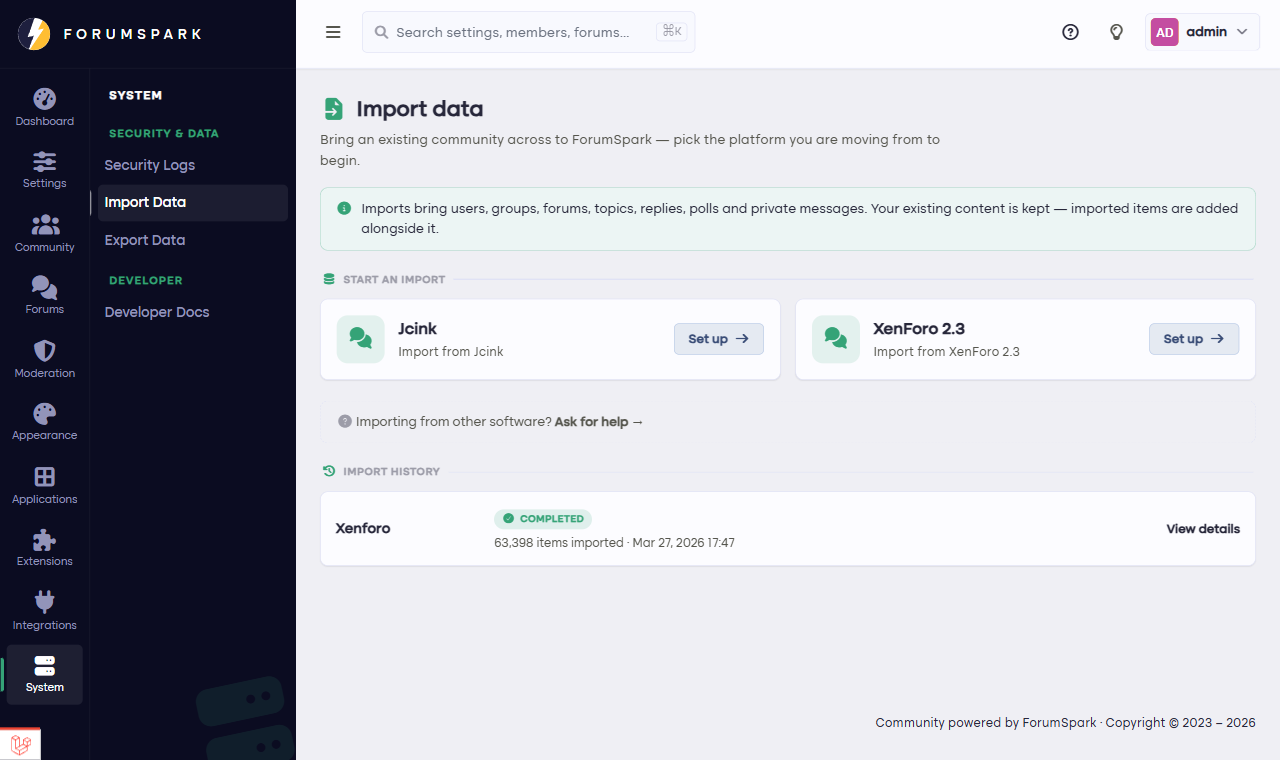
Pick a platform and the tool walks you through the rest.
Good to know
Passwords don't move. No forum software gives up passwords, ForumSpark included. Imported members simply reset their password the first time they sign in, using the email address that came over with their account.
Run it before you go live. Importing into a quiet board is tidier than importing into an active one. Do the move first, invite everyone after.
Rather not do this yourself, or coming from software we don't import yet? Write to [email protected] and the team will look at moving your community for you.