

Invite your members
A forum with no members is a website. This guide covers how people join your board and the few settings that shape that moment.
Share your address
Your board is live at yourname.forumspark.net from day one, so the simplest invitation is the link itself. Anyone who visits can read what your permissions allow guests to read, and the register button is right there in the header.
How joining works
People can join your board in a few ways, and they all can be on at once:
Plain registration. Username, email, password. Whether this is open to everyone or held for your approval is your call in Configuration, then Settings.
Social login. In Community, then Social Login you can let members join with their Discord, Google, Facebook or GitHub account. One click for them, one less password to forget.
A ForumSpark account. Members who already use another ForumSpark board can sign in with the same identity here. It's on by default, and it makes joining nearly instant for anyone already in the ecosystem.
yourboard.forumspark.net/register
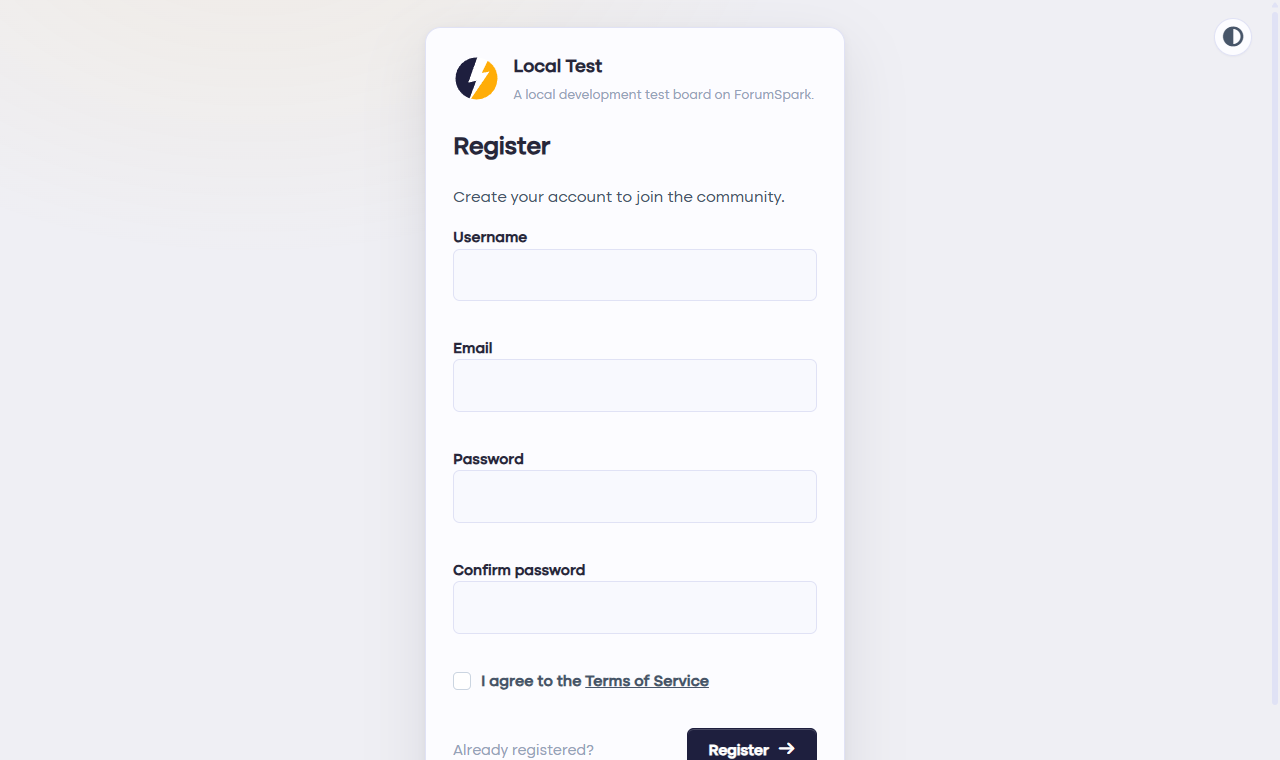
What a new member sees. Social login buttons appear once you configure them.
If you require approval
With approval on, new registrations wait in a queue instead of posting right away. You'll find pending members in Community, then Member Search, marked clearly; approving is one click. It's a good fit for private or slow-burn communities, less so for a board trying to grow fast.
Spam protection runs either way. ForumSpark checks new signups against known spammer lists and its own platform-wide ban filters before they ever reach you.
Members in and settled? Give them something beautiful to look at: the Design and themes guides are next, or skim Choose your plan to see what your board can grow into.